Introduction
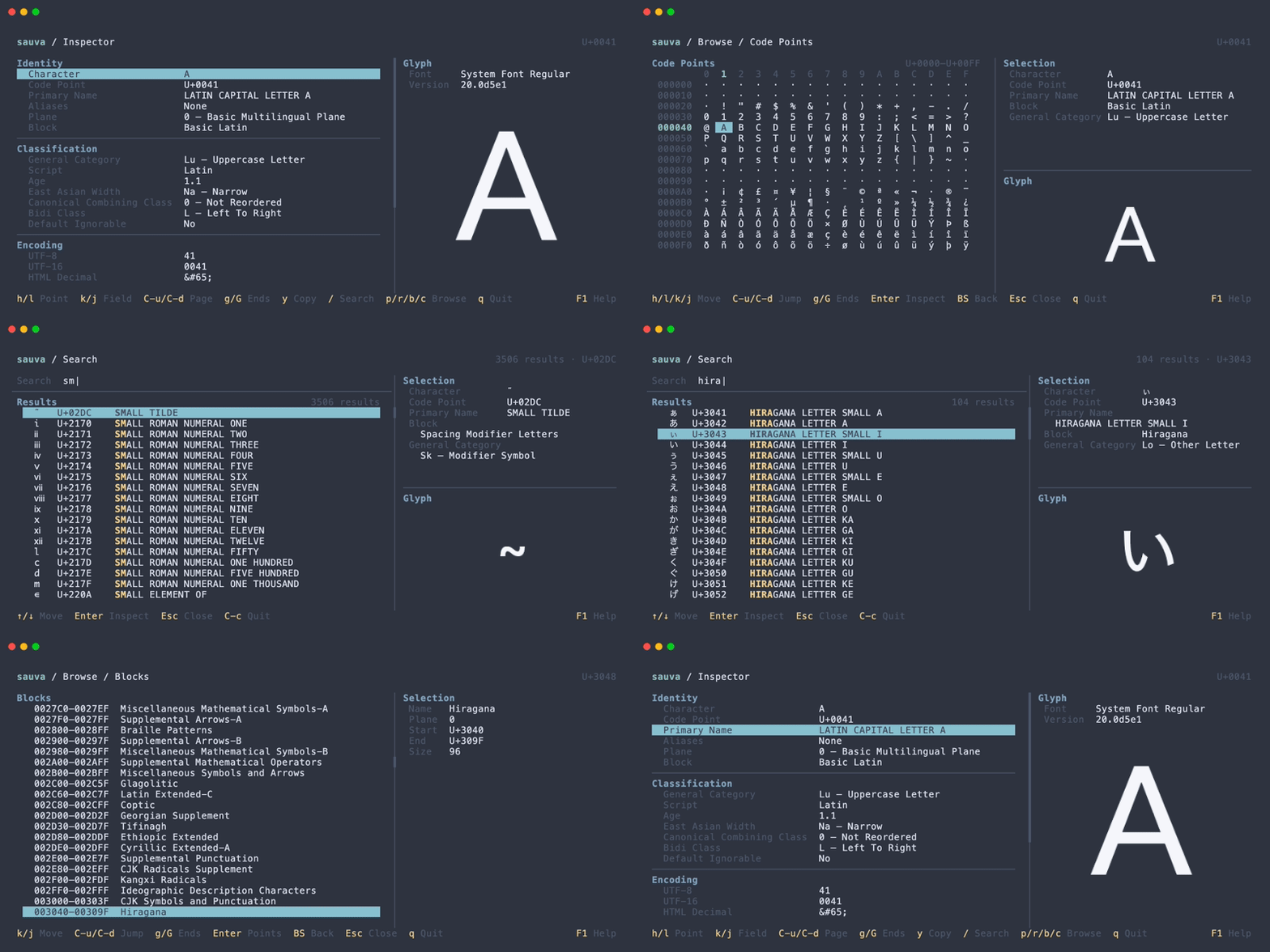
Sauva is a terminal application for searching and browsing Unicode code points. It shows Unicode properties and a glyph preview in a responsive TUI.
Key Features
- Inspect Unicode names, properties, encodings, and decomposition mappings.
- Search by character, code point, Unicode name, or formal name alias.
- Browse Unicode planes, ranges, blocks, and code points.
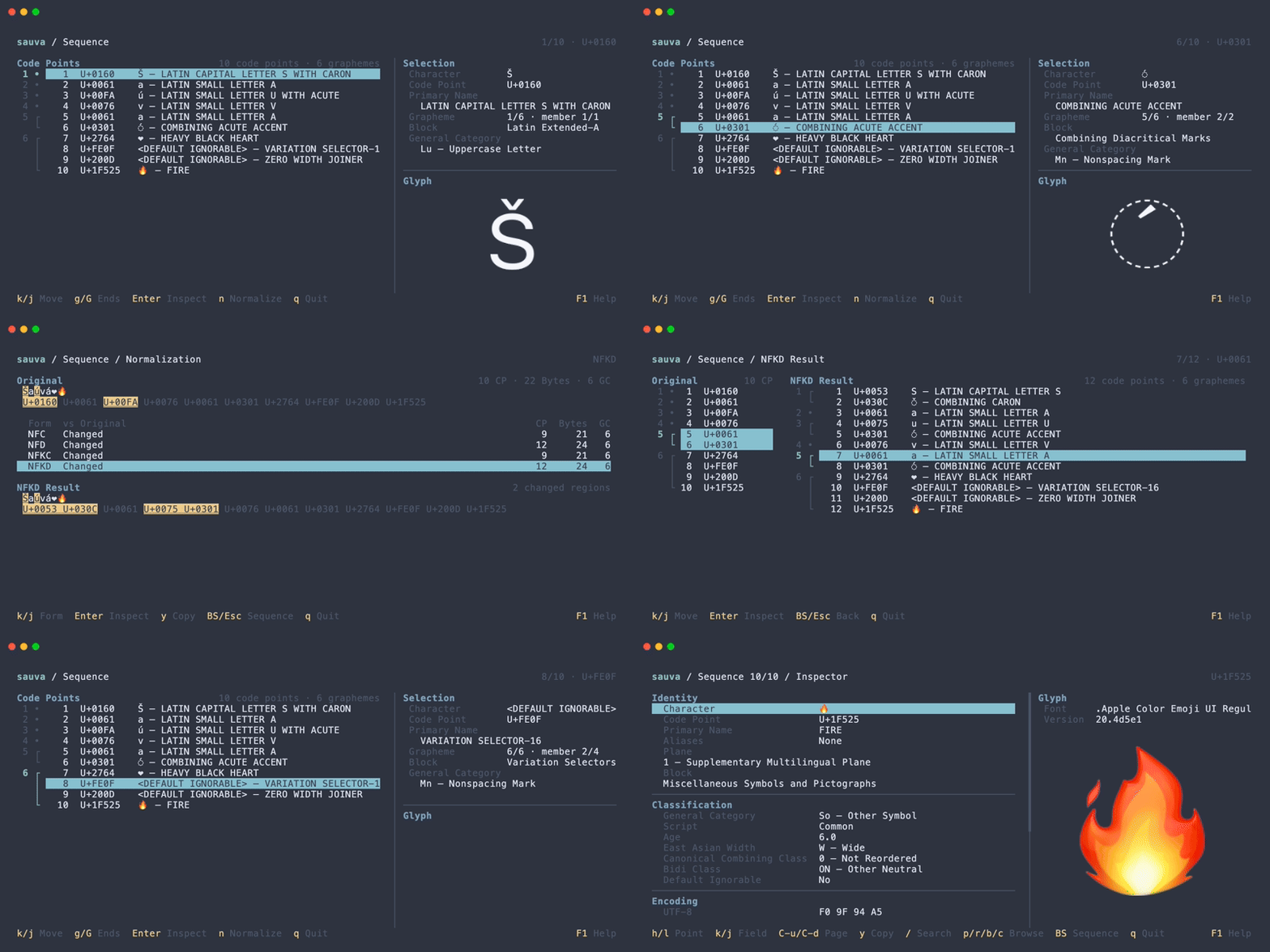
- Analyze text as code points and grapheme clusters in Sequence mode.
- Compare NFC, NFD, NFKC, and NFKD normalization forms.
- Preview glyphs using installed fonts and a terminal graphics protocol.
- Customize colors, fonts, and keybindings.
For example, use Sauva to identify an invisible character, find a symbol by name, or examine how an emoji or accented letter is represented in a string.
Unicode Data
Sauva bundles data based on Unicode 17.0.0. Browsing and property lookup work offline, and the bundled data version is shown in the Inspector.
Glyphs depend on the fonts installed on your system. A character can have Unicode data even when no installed font can display it.
Built with Rust and Ratatui. Sauva is available on GitHub under the MIT License.
The generated Unicode data is distributed under the Unicode License v3. See the third-party notices for details.
Getting Started
- Requirements: supported systems and terminal requirements.
- Installation: install with Cargo, Homebrew, or a release binary.
- Basic Usage: inspect a character or analyze a string.
- Command Line Options: input formats and startup options.
- Compatibility: terminal graphics and system fonts.
Requirements
Operating Systems
Sauva supports macOS and Linux. Windows is not currently supported.
Terminal
An interactive terminal is required, including when the input is read from a pipe or file. Sauva reads the supplied input first, then accepts keyboard input from the terminal.
The minimum terminal size is 60 columns by 16 rows. A larger terminal, such as 100 columns by 30 rows, provides room for additional preview panels.
Glyph Images
Glyph images require a compatible terminal and fonts installed on your system. Sauva does not bundle fonts.
kitty and Ghostty are supported for automatic graphics detection. See Compatibility for the available protocols and modes.
Unicode properties, browsing, searching, and text analysis remain available when glyph images are disabled or unavailable.
Building from Source
Installing with Cargo requires Rust 1.88.0 or later. A release binary does not require Rust to be installed.
Installation
Cargo
Install from crates.io:
cargo install --locked sauva
See Requirements for the minimum Rust version.
Homebrew (macOS)
brew install lusingander/tap/sauva
The formula is available in lusingander/homebrew-tap.
Release Binaries
Download an archive for your operating system and architecture from the releases page.
| Operating system | Architecture | Target |
|---|---|---|
| macOS | Apple Silicon | aarch64-apple-darwin |
| macOS | Intel | x86_64-apple-darwin |
| Linux | ARM64 | aarch64-unknown-linux-gnu or aarch64-unknown-linux-musl |
| Linux | x86-64 | x86_64-unknown-linux-gnu or x86_64-unknown-linux-musl |
Extract the archive and put the sauva executable in a directory on your PATH.
Verify the Installation
sauva --version
Continue with Basic Usage.
Basic Usage
Inspect a Code Point
Run Sauva without arguments to open the default code point:
sauva
You can also specify a character or code point:
sauva あ
sauva U+2192
The Inspector shows the selected code point's properties and glyph preview.
- Use h / l or Left / Right to inspect adjacent code points.
- Use j / k or Down / Up to select a property, then y to copy its value.
- Press / to search, or p, r, b, or c to browse.
- Press F1 for help with the current screen.
- Press q or Esc to quit from the Inspector. Ctrl-C quits from any screen.
Analyze a String
Pass a string containing multiple code points to open Sequence mode:
sauva 'Á👩💻'
The list preserves the input order and groups code points into grapheme clusters.
- Use j / k or Down / Up to select a code point.
- Press Enter to open it in the Inspector, then Backspace to return.
- Press n in Sequence to compare normalization forms.
Use --text when a string would otherwise be interpreted as code point notation:
sauva --text 41
Read from a Pipe or File
Use --text - to read literal UTF-8 text from a pipe or file:
printf 'Á👩💻' | sauva --text -
sauva --text - < input.txt
Whitespace and trailing newlines are preserved.
For all input rules and options, see Command Line Options. The complete controls are listed in Keybindings.
Command Line Options
Sauva - Terminal Unicode Explorer 🪄

Usage: sauva [OPTIONS] [INPUT]

Arguments:
  [INPUT]  Text or code point to inspect, or - to read stdin

Options:
  -t, --text <TEXT>           Treat the input as literal text, without code point notation parsing; - reads stdin
  -g, --graphics <MODE>       Control glyph preview graphics [default: auto] [possible values: auto, force, iterm2, off]
      --print-default-config  Print the complete default configuration to standard output
  -h, --help                  Print help
  -V, --version               Print version
INPUT
Input is interpreted in this order:
- An input containing a single code point opens the Inspector.
U+or0xfollowed by one to six hexadecimal digits selects a code point. The prefixes are case-insensitive.- An argument made entirely of hexadecimal digits is interpreted as a code point. It must contain two to six digits.
- Other nonempty text opens Sequence mode when it contains multiple code points, even if it looks like one character.
Code point values must be between U+0000 and U+10FFFF. Empty input is rejected.
| Example | Interpretation |
|---|---|
sauva あ | Inspect U+3042 |
sauva A | Inspect the letter A (U+0041) |
sauva U+A | Inspect U+000A |
sauva 41 | Inspect U+0041 |
sauva 1F600 | Inspect U+1F600 |
sauva 'Á👩💻' | Analyze a sequence of code points |
A hexadecimal-only argument that fails notation parsing is rejected; it does not fall back to literal text. For example, use --text for a string of seven hexadecimal digits.
-t, --text <TEXT>
Treat the input as literal text without parsing code point notation:
sauva --text 41
sauva -t U+2192
A single code point still opens the Inspector; multiple code points open Sequence mode. Empty text is rejected.
INPUT and --text cannot be supplied together.
Reading from Stdin
Use - as INPUT to read stdin using the same interpretation rules. Use --text - to read literal text instead.
printf 'U+2192' | sauva -
printf 'Á👩💻' | sauva -
printf '41' | sauva --text -
printf 'A\nB\n' | sauva -
sauva --text - < input.txt
Sauva reads UTF-8 input until EOF before starting the TUI. All whitespace, including trailing LF and CRLF, is preserved. Empty input and invalid UTF-8 are rejected.
In particular, echo U+2192 | sauva - is rejected because the newline is part of the code point notation. Use printf 'U+2192' | sauva - for notation, or echo U+2192 | sauva --text - to inspect the literal text including its newline.
Stdin is read only when - is explicitly supplied. An interactive terminal is still required for keyboard input.
Since - selects stdin, use sauva U+002D to inspect the hyphen character itself.
-g, --graphics <MODE>
| Mode | Behavior |
|---|---|
auto | Use the Kitty graphics protocol in detected kitty and Ghostty terminals; otherwise omit glyph images |
force | Use the Kitty graphics protocol without terminal detection |
iterm2 | Use the iTerm2 inline image protocol; never selected automatically |
off | Disable glyph images |
See Compatibility for support details.
--print-default-config
Print the complete built-in configuration, including default keybindings, and exit:
sauva --print-default-config
sauva --print-default-config > config.toml
This option does not start the TUI or load your local configuration. It must be used on its own.
See Configurations for where to put the file.
-h, --help and -V, --version
Print command line help or the installed application version and exit.
Compatibility
Operating Systems
macOS and Linux are supported. Windows is not currently supported.
Terminal Graphics
Sauva uses the Kitty graphics protocol with Unicode placeholders for glyph images.
| Terminal | Graphics mode | Support |
|---|---|---|
| kitty | auto | Supported |
| Ghostty | auto | Supported |
| Other terminals supporting Kitty graphics and Unicode placeholders | force | Can be tried; compatibility is not guaranteed |
| Terminals supporting the iTerm2 inline image protocol | iterm2 | Explicit opt-in; compatibility and future support are not guaranteed |
| Other terminals | off or auto | Text information remains available without glyph images |
Automatic detection recognizes TERM=xterm-kitty and TERM=xterm-ghostty.
If a compatible terminal is not detected, try:
sauva --graphics force
This skips detection; it does not add graphics support to the terminal. A terminal multiplexer or a changed TERM value may affect detection and image display.
The iTerm2 inline image protocol is available only when selected explicitly:
sauva --graphics iterm2
Sixel is not implemented. To disable images, use:
sauva --graphics off
Fonts
Sauva does not bundle fonts. The available glyphs and their appearance depend on the fonts installed on the system.
Additional fonts are optional. If a character has no glyph preview, installing a font that covers it may help. Useful starting points include:
| Fonts | Useful for |
|---|---|
| Noto Sans Symbols and Noto Sans Symbols 2 | Symbols, arrows, and dingbats |
| Noto Sans CJK | Chinese, Japanese, and Korean characters |
| Noto Color Emoji | Color emoji on Linux |
Coverage varies by font and version. Install the fonts needed for the characters you want to explore.
- macOS uses Core Text to find system fonts.
- Linux uses Fontconfig when available. If Fontconfig cannot be loaded, Sauva uses a best-effort font database lookup.
Preferred text and emoji fonts can be configured separately. See Glyph Preview for the selection order and settings.
Glyph preview fonts are selected independently of the terminal's text font, so terminal-rendered characters and glyph images can look different. The glyph preview settings do not change the terminal's text font.
Layout
The TUI adapts to the terminal size. Some preview panels are hidden at smaller widths, while the main text view remains available. See Requirements for the minimum size.
Configurations
Sauva uses a TOML configuration file to customize colors, glyph preview fonts, presentation, and keybindings.
Configuration File Location
The configuration path is selected in this order:
$SAUVA_CONFIG_FILE, if set.$XDG_CONFIG_HOME/sauva/config.toml, ifXDG_CONFIG_HOMEis nonempty.$HOME/.config/sauva/config.toml.
Only the selected file is loaded. For example, when XDG_CONFIG_HOME is set, Sauva does not look in $HOME/.config if that file is missing.
If the default file does not exist, all built-in settings are used. An empty SAUVA_CONFIG_FILE, a missing file explicitly selected with it, or an invalid configuration causes startup to fail.
All settings are optional. Unspecified settings keep their built-in defaults. Unknown fields are rejected, so misspelled setting names cause an error instead of being ignored.
Create a Configuration
Print the complete default configuration:
sauva --print-default-config
To create a file at the default location when XDG_CONFIG_HOME is unset:
mkdir -p ~/.config/sauva
sauva --print-default-config > ~/.config/sauva/config.toml
This writes to the specified file; use a new file path if you already have a configuration you want to keep.
You can also use a custom path:
sauva --print-default-config > ./config.toml
SAUVA_CONFIG_FILE=./config.toml sauva
Printing defaults does not load the local configuration or start the TUI, so it also works when an existing configuration is invalid.
- Config File Format: all configuration sections, values, and defaults.
- Glyph Preview: font selection and image colors.
- Custom Keybindings: command bindings for each screen.
Config File Format
All configuration settings are optional. Specify only the values you want to change, for example:
[color]
accent = "magenta"
The sections below list the settings and their defaults. Use sauva --print-default-config to print the full configuration, including every default keybinding.
The configuration structure is also described by config.schema.json. Sauva validates the configuration at startup, including terminal cell widths and keybinding conflicts.
color
These settings control the TUI's colors:
| Setting | Default | Use |
|---|---|---|
fg | "reset" | Main text |
bg | "reset" | Main background |
muted | "darkgray" | Secondary text and labels |
accent | "cyan" | Accented text and grapheme markers |
heading | "blue" | Section headings |
border | "darkgray" | Borders and scrollbars |
match | "yellow" | Search matches |
key | "yellow" | Key labels in help and the footer |
link | "blue" | Link text |
selection.fg | "black" | Selected item text |
selection.bg | "cyan" | Selected item background |
difference.fg | "black" | Text in changed normalization spans |
difference.bg | "yellow" | Background of changed normalization spans |
status.info | "green" | Informational status messages |
status.warning | "yellow" | Warning status messages |
Changed normalization spans are also underlined. Their colors are configured separately from the selection colors.
UI color values are strings in one of these formats:
- ANSI names:
reset,black,red,green,yellow,blue,magenta,cyan,gray,darkgray,light-red,light-green,light-yellow,light-blue,light-magenta,light-cyan, orwhite. - RGB hexadecimal:
"#RRGGBB". - Indexed color: a quoted number from
"0"to"255".
reset uses the terminal's default color. UI colors do not accept an alpha channel.
For example:
[color]
heading = "#89b4fa"
muted = "245"

[color.selection]
fg = "black"
bg = "light-blue"
glyph_preview
| Setting | Type | Default |
|---|---|---|
font_families | Array of font family names | [] |
emoji_font_families | Array of font family names | [] |
fg | RGB or RGBA color string | "#f5f7fa" |
bg | RGB or RGBA color string | "#00000000" |
Empty or whitespace-only family names are rejected. Image colors accept #RRGGBB or #RRGGBBAA, including an alpha channel.
See Glyph Preview for examples and the complete font selection order.
ui
input_cursor
The cursor shown in the search input.
- Default:
"native", using the terminal's native cursor. - Use
{ text = "..." }for a text cursor. Its text must occupy exactly one terminal cell, without control characters.
[ui]
input_cursor = { text = "|" }
bookmark_date_format
The strftime format for bookmark registration times, shown in the selected entry's details. Times use the local time zone.
- Default:
"%Y-%m-%d %H:%M %Z", such as2026-10-16 14:32 JST. - The format must produce nonempty text without control characters. Invalid formats are rejected at startup.
[ui]
bookmark_date_format = "%Y-%m-%d %H:%M:%S %:z"
See Bookmarks for the list controls and storage location.
keybindings
Use [keybindings.<context>] sections to customize controls. See Custom Keybindings for syntax, examples, and validation rules.
Glyph Preview
The glyph preview renders the selected code point as an image using a font installed on your system. When space is available, the preview panel also shows the font family, style, and version.
The image font is selected independently of the terminal's text font. Configure it in the [glyph_preview] section:
[glyph_preview]
font_families = ["Iosevka", "Noto Sans"]
emoji_font_families = ["Noto Color Emoji"]
Font Selection
For each code point, Sauva tries:
- Configured normal fonts in
font_families, in order. - The system default text font.
- Configured emoji fonts in
emoji_font_families, in order. - System fallback fonts.
Missing families and fonts without a usable glyph are skipped.
Sauva does not install fonts. Specify family names for fonts already installed on the machine. The chosen font can vary between code points and between operating systems.
For OS-specific font lookup and terminal support, see Compatibility.
Image Colors
Use fg for the glyph foreground color and bg for the image background. For example, on a light terminal:
[glyph_preview]
fg = "#202020"
bg = "#ffffff"
Color font glyphs, such as emoji, can use their own palette.
See Config File Format for defaults and accepted values.
Special Characters
Combining marks can be shown with a dotted circle to make their position visible. The dotted circle is a preview aid; it is not part of the character's value or the text copied from the Inspector.
Some code points cannot produce a visible image:
| Message | Meaning |
|---|---|
No visible pixels | The resolved glyph is blank, as can happen with a space or invisible character |
Glyph unavailable | No usable glyph was found in the available fonts |
Not a Unicode scalar value | The selected code point is a surrogate and cannot be rendered |
Graphics disabled | Images were disabled with --graphics off |
Graphics unavailable | Automatic detection did not select a graphics protocol |
Unicode details remain available in these cases. See FAQ for troubleshooting.
Keybindings
Press F1 to open or close contextual help. Help and the footer show the active bindings, including your custom settings.
The tables below list the built-in bindings and the command names used in Custom Keybindings.
Global
Context: global. These bindings apply in every screen, including help.
| Command | Keys | Action |
|---|---|---|
quit | Ctrl-C | Quit Sauva |
help | F1 | Open or close help |
Inspector
Context: inspector.
| Command | Keys | Action |
|---|---|---|
quit | q, Esc | Quit |
previous_code_point | h, Left | Inspect the previous code point |
next_code_point | l, Right | Inspect the next code point |
move_up | k, Up | Select the previous property |
move_down | j, Down | Select the next property |
previous_group | [ | Select the first property of the previous section |
next_group | ] | Select the first property of the next section |
page_up | Ctrl-U | Move properties up one page |
page_down | Ctrl-D | Move properties down one page |
first | g | Select the first property |
last | G | Select the last property |
explain_property | e | Explain the selected property |
copy_value | y | Copy the selected property value |
open_copy_dialog | Y | Choose a representation of the current code point |
toggle_properties | a | Toggle Relevant / All properties |
search | / | Open search |
toggle_bookmark | m | Add or remove the current code point's bookmark |
bookmarks | M | Open Bookmarks |
browse_planes | p | Browse planes |
browse_ranges | r | Browse ranges in the current plane |
browse_blocks | b | Browse blocks |
browse_code_points | c | Browse code points in the current range |
back | Backspace | Return to the bookmark list or sequence that opened the Inspector |
Property
Context: property. Open a property's explanation with e in the Inspector. The Inspector's bindings are inactive until you return.
| Command | Keys | Action |
|---|---|---|
move_up | k, Up | Scroll up one line |
move_down | j, Down | Scroll down one line |
page_up | Ctrl-U | Scroll up one page |
page_down | Ctrl-D | Scroll down one page |
first | g | Go to the beginning |
last | G | Go to the end |
open_reference | o | Open the specification in the default browser |
copy_reference_url | y | Copy the specification URL |
close | Esc | Return to the Inspector |
Search
Context: search.
| Command | Keys | Action |
|---|---|---|
previous_result | Up, Ctrl-P | Select the previous result |
next_result | Down, Ctrl-N | Select the next result |
inspect_result | Enter | Open the selected result in the Inspector |
close | Esc | Close search |
Character keys edit the query, including j, k, and q. Use the arrow keys or Ctrl-P / Ctrl-N to select results. Search input editing keys are reserved and cannot be assigned to commands.
Bookmarks
Context: bookmarks.
| Command | Keys | Action |
|---|---|---|
quit | q | Quit |
close | Esc | Close Bookmarks and return to the Inspector |
move_up | k, Up | Select the previous bookmark |
move_down | j, Down | Select the next bookmark |
page_up | Ctrl-U | Move up one page |
page_down | Ctrl-D | Move down one page |
first | g | Select the first bookmark |
last | G | Select the last bookmark |
activate | Enter | Inspect the selected code point |
toggle_bookmark | m | Remove the selected bookmark |
switch_sort | s | Switch sort order |
Use Backspace in the Inspector to return to the list. See Bookmarks for registration times and storage.
Sequence
Context: sequence.
| Command | Keys | Action |
|---|---|---|
quit | q, Esc | Quit |
move_up | k, Up | Select the previous code point |
move_down | j, Down | Select the next code point |
previous_group | [ | Select the first code point of the previous grapheme cluster |
next_group | ] | Select the first code point of the next grapheme cluster |
first | g | Select the first code point |
last | G | Select the last code point |
activate | Enter | Inspect the selected code point |
normalize | n | Compare normalization forms |
open_copy_dialog | Y | Open copy candidates |
Normalization
Context: normalization.
| Command | Keys | Action |
|---|---|---|
quit | q | Quit |
close | Esc | Return to the original sequence |
back | Backspace | Return to the original sequence |
move_up | k, Up | Select the previous normalization form |
move_down | j, Down | Select the next normalization form |
first | g | Select NFC |
last | G | Select NFKD |
activate | Enter | Inspect the selected normalization result |
copy_value | y | Copy the exact normalized text |
open_copy_dialog | Y | Choose a representation of the whole normalized result |
Normalization Result
Context: normalization_result.
| Command | Keys | Action |
|---|---|---|
quit | q | Quit |
close | Esc | Return to normalization comparison |
back | Backspace | Return to normalization comparison |
move_up | k, Up | Select the previous code point |
move_down | j, Down | Select the next code point |
previous_group | [ | Select the first code point of the previous grapheme cluster |
next_group | ] | Select the first code point of the next grapheme cluster |
first | g | Select the first code point |
last | G | Select the last code point |
activate | Enter | Inspect the selected code point |
open_copy_dialog | Y | Open copy candidates for the normalized text |
Use Backspace in the Inspector to return to this result.
Copy Dialog
Context: copy_dialog. These bindings apply to the dialog opened from Inspector, Sequence, or either Normalization screen. The source screen's bindings are inactive while the dialog is open. See Copying for available targets and formats.
| Command | Keys | Action |
|---|---|---|
move_up | k, Up | Select the previous target |
move_down | j, Down | Select the next target |
move_left | h, Left | Select the previous format |
move_right | l, Right | Select the next format |
first | g | Select the first target |
last | G | Select the last target |
activate | Enter | Copy the selected target and format |
close | Esc | Cancel and return to the source screen |
Global F1 opens the shared Copy Dialog help. Global Ctrl-C still quits.
Browse Lists
Contexts: browse_plane, browse_range, and browse_block.
| Command | Keys | Action |
|---|---|---|
quit | q | Quit |
close | Esc | Cancel browsing and return to the Inspector |
back | Backspace | Return to the previous browse level, or to the Inspector at the top |
move_up | k, Up | Select the previous item |
move_down | j, Down | Select the next item |
first | g | Select the first item |
last | G | Select the last item |
activate | Enter | Open ranges in a plane, or code points in a range or block |
browse_range and browse_block additionally support:
| Command | Keys | Action |
|---|---|---|
page_up | Ctrl-U | Move backward by a large step |
page_down | Ctrl-D | Move forward by a large step |
Browse Code Points
Context: browse_code_points.
| Command | Keys | Action |
|---|---|---|
quit | q | Quit |
close | Esc | Cancel browsing and return to the Inspector |
back | Backspace | Return to the previous browse level |
move_left | h, Left | Move left |
move_right | l, Right | Move right |
move_up | k, Up | Move up one row |
move_down | j, Down | Move down one row |
page_up | Ctrl-U | Move backward by a large step |
page_down | Ctrl-D | Move forward by a large step |
first | g | Select the first code point in the range or block |
last | G | Select the last code point in the range or block |
activate | Enter | Inspect the selected code point |
Help
Context: help. The underlying screen's commands are inactive while help is open; global bindings remain active.
| Command | Keys | Action |
|---|---|---|
close | Esc | Close help |
move_up | k, Up | Scroll up one line |
move_down | j, Down | Scroll down one line |
page_up | Ctrl-U | Scroll up one page |
page_down | Ctrl-D | Scroll down one page |
first | g | Go to the beginning |
last | G | Go to the end |
Custom Keybindings
Customize bindings in the [keybindings.<context>] sections of the configuration file.
[keybindings.global]
help = ["f2"]

[keybindings.inspector]
next_code_point = ["l", "right", "n"]
toggle_properties = ["t"]
back = ["backspace"]
browse_planes = []

[keybindings.sequence]
open_copy_dialog = ["C"]

[keybindings.normalization_result]
open_copy_dialog = ["C"]

[keybindings.copy_dialog]
activate = ["enter", "y"]
- Each array replaces the keys for one command in one context.
- Omitted commands keep their built-in bindings.
- Multiple keys can be assigned to one command.
- An empty array disables that command in that context.
- Help and the footer display the resulting bindings.
See Keybindings for all contexts and command names, or use sauva --print-default-config to see the default bindings.
Global Bindings
Global bindings remain active in all contexts. When help is open, only its own bindings and the global bindings are active.
Disabling a local command does not disable the global binding for the same action. For example, disabling keybindings.inspector.quit leaves the default global Ctrl-C binding available.
Key Formats
Characters
Use a single non-whitespace character, such as a, 1, /, or -.
Uppercase ASCII letters represent Shift plus that letter. For example, G and shift-g both describe Shift-G.
Named Keys
| Name | Key |
|---|---|
space | Space |
enter | Enter |
esc | Escape |
tab | Tab |
backspace | Backspace |
delete | Delete |
left, right, up, down | Left, Right, Up, Down |
home, end | Home and End |
pageup, pagedown | Page Up and Page Down |
f1 through f12 | F1 through F12 |
Names and modifier prefixes are lowercase.
Modifiers
Use ctrl-, alt-, or shift- followed by a single character. Modifiers can be combined, without repeating the same modifier:
[keybindings.inspector]
next_code_point = ["ctrl-n", "alt-l"]
last = ["shift-g"]
Modifiers apply only to character keys. Forms such as ctrl-left, shift-tab, or alt-f1 are not supported. Use a lowercase ASCII letter after a modifier; ctrl-G is invalid.
The terminal must deliver the chosen key combination to Sauva. Some combinations are handled by the terminal itself.
Conflicts and Validation
Sauva rejects invalid bindings at startup, including:
- Unknown contexts, command names, or key names.
- Duplicate keys for a command, including equivalent forms such as
Gandshift-g. - A key assigned to two different commands in the same context.
- A local binding that uses a global key for a different command.
- Global or search bindings that would intercept search input editing.
For example, binding j to search.next_result is rejected because j is needed for typing the query. Use an arrow key or another combination that is not an input editing key.
When moving a key from one command to another, also remove it from the original command's binding. The same applies if new built-in bindings conflict with existing overrides. For example:
[keybindings.inspector]
next_code_point = ["right"]
copy_value = ["y", "l"]
Features
- Inspector: inspect one code point and copy its properties.
- Search: find a character by value, name, or formal alias.
- Browse: explore planes, ranges, blocks, and code points.
- Bookmarks: save code points and revisit them across sessions.
- Sequence: examine a string's code points and grapheme clusters.
- Normalization: compare and inspect normalized text.
- Copying: copy text, string literals, code point lists, and encodings.
Press F1 in any screen for contextual help. See Keybindings for the complete controls.
Inspector
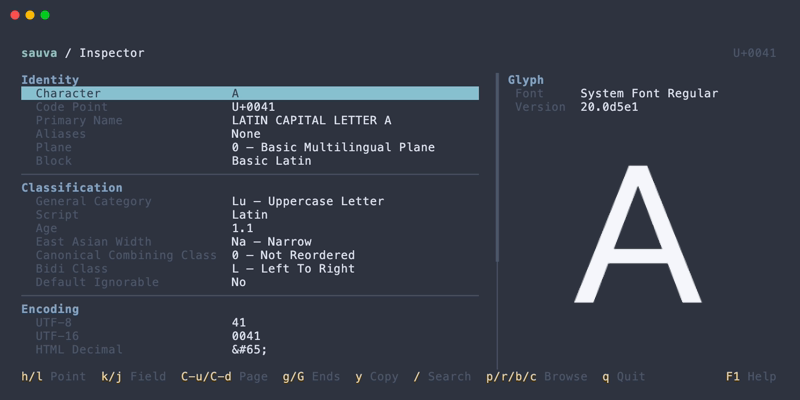
The Inspector shows the properties of one Unicode code point. Open it at startup with a character or code point argument, or select a code point from Search, Browse, Bookmarks, or Sequence.
sauva あ
sauva U+2192
Properties
The Inspector starts in Relevant mode.
| Section | Fields |
|---|---|
| Identity | Character, Code Point, Primary Name, Aliases, Plane, Block |
| Classification | General Category, Script, Age, East Asian Width, Canonical Combining Class, Bidi Class, Default Ignorable |
| Case | Uppercase Mapping, Lowercase Mapping, Titlecase Mapping, Case Folding |
| Numeric | Numeric Type, Numeric Value |
| Encoding | UTF-8, UTF-16, HTML Decimal, HTML Hex, Rust char, Unicode Escape |
| Normalization | Decomposition Type, Decomposition |
| Data | Unicode Version |
In Relevant mode:
- Aliases, Decomposition Type, and Decomposition appear only when present. Empty sections are omitted.
- Canonical Combining Class appears for combining marks, including those with a value of
0, and for any code point with a nonzero value. - Default Ignorable appears only when its value is
Yes. - Case fields appear only when their mapping differs from the selected code point.
- Numeric Type and Numeric Value appear together when a numeric value exists, including
0. - Encoding shows the available representations. For surrogates, it shows one explanation instead of unavailable fields.
The remaining fields are always shown, including default values for unassigned code points. All mode shows every field, including None, No, 0, and unavailable values. Unchanged case mappings show the selected code point itself. Code points without a numeric value show Numeric Type None and Numeric Value NaN.
Some useful distinctions:
- Age is the Unicode version in which the character was introduced. Unicode Version is the version of Sauva's bundled data.
- Aliases lists formal Unicode name aliases and their types. These aliases can also be searched.
- East Asian Width is a Unicode property. Actual terminal cell width also depends on the terminal and its rendering rules.
- Case shows full Unicode mappings as code points and names, including mappings to multiple characters such as
ß→SS. These are the default mappings for a single code point; language-specific and context-dependent rules are not applied. Case Folding shows the default full mapping used for caseless matching. - Numeric Type distinguishes
Decimal,Digit, andNumeric. Numeric Value preserves exact integers and fractions, such as0,4, and1/2, including values for numeric ideographs. - Decomposition shows the character's Unicode decomposition mapping. To compare the normalized forms of a string, use Normalization from Sequence.
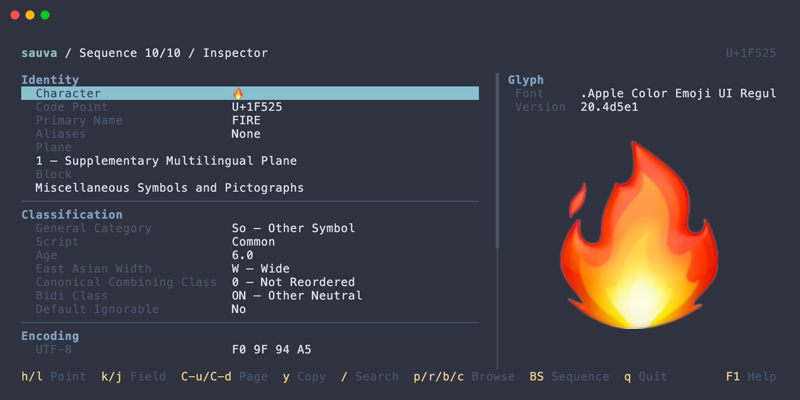
The glyph panel renders the selected code point and shows the font used, when space is available. See Glyph Preview for font settings and special cases.
Property Explanations
Property explanations cover a property's meaning, possible values or format, notes, and a specification reference. Explanations are bundled with Sauva and can be read offline, including for unavailable values shown in All mode.
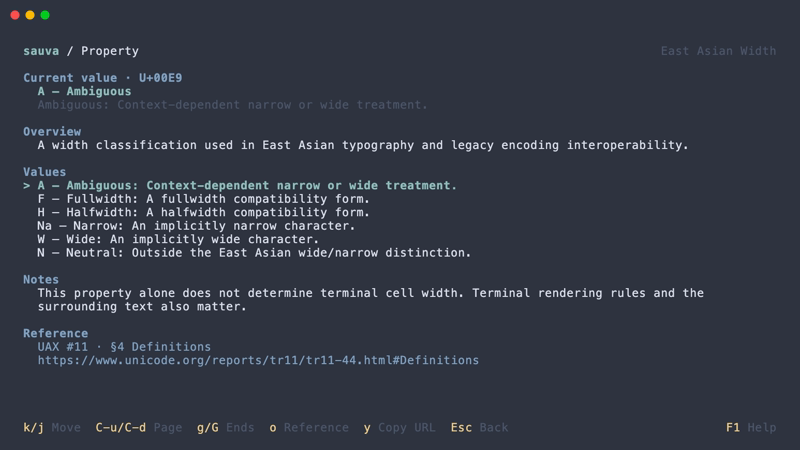
Specification references can be opened in your default browser or copied as URLs.
Copying Values
The selected property value can be copied to the system clipboard. Selecting Character copies the actual character, including invisible characters and combining marks. Display aids such as a dotted circle or a <SPACE> label are not included in that value.
Unavailable values, such as an encoding for a surrogate, cannot be copied. A status message reports whether copying succeeded or why it failed.
Case mappings copy the displayed code points and names, preserving their order and repeated characters. Numeric Value copies its exact number or fraction; NaN cannot be copied.
The copy dialog copies the current code point in a chosen format, independently of the selected property.
Special Code Points
Sauva can inspect the full code point range, including unassigned code points, private-use characters, and surrogates.
Surrogates are not Unicode scalar values, so UTF-8 / UTF-16 encodings and character images are unavailable for them. Empty or invisible characters may have property data without visible pixels in the preview.
Operations
| Keys | Action |
|---|---|
| Left / Right | Inspect the previous / next code point |
| Up / Down | Select a property |
| e | Open the selected property's explanation |
| y | Copy the selected property value |
| Y | Open the copy dialog for the current code point |
| a | Toggle Relevant / All properties |
| / | Open Search |
| p, r, b, c | Open Browse at the corresponding level |
| m / M | Toggle a bookmark / open Bookmarks |
| Backspace | Return to the bookmark list or sequence that opened the Inspector |
Adjacent navigation follows code point values, even when the Inspector was opened from a sequence.
See Keybindings for all Inspector and property explanation controls.
Search
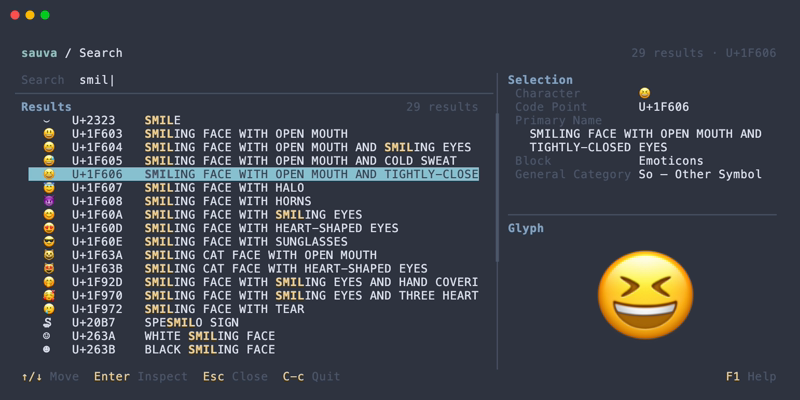
Press / in the Inspector to search by character, code point, Unicode name, or formal name alias.
Queries
Results update as the query changes.
| Query | Behavior |
|---|---|
あ | Find the literal character |
A | Find the letter A |
U+2192 | Find that code point |
U+A | Find U+000A |
2192 | Find that code point and matching names or aliases |
arrow | Match Unicode names and formal aliases containing the query |
LF | Find matching formal aliases and names |
Surrounding ASCII whitespace is removed from a search query. Name and alias matching ignores ASCII case and normalizes runs of ASCII whitespace to a single space.
A U+ prefix explicitly selects code point notation and accepts one to six hexadecimal digits. A bare hexadecimal query is interpreted as notation only when it contains four to six digits; its name and alias matches are included as well.
Search notation differs from command line input: the search field does not recognize the 0x prefix, and a query such as 41 searches names and aliases. Use U+0041 for an unambiguous code point query.
Invalid U+ notation and out-of-range code points display an error. A valid query with no matching results displays an empty result list.
Result Order
Direct character or code point matches appear first. Name and alias matches follow, ordered by exact match, prefix match, and substring match. For equal match types, primary name matches precede alias matches, and code point order breaks remaining ties.
A code point appears only once even if both its name and an alias match. Matching text is highlighted.
Operations
| Keys | Action |
|---|---|
| Character keys | Edit the query |
| Up / Down | Select a result |
| Enter | Open the selected result in the Inspector |
| Esc | Close Search and return to the Inspector |
See Keybindings for all Search controls.
Browse
Browse Unicode by numeric location or by a named block. From the Inspector, use these shortcuts:
| Key | Starting view |
|---|---|
| p | Planes |
| r | Ranges in the current plane |
| b | Blocks |
| c | Code points in the current range |
Planes and Ranges
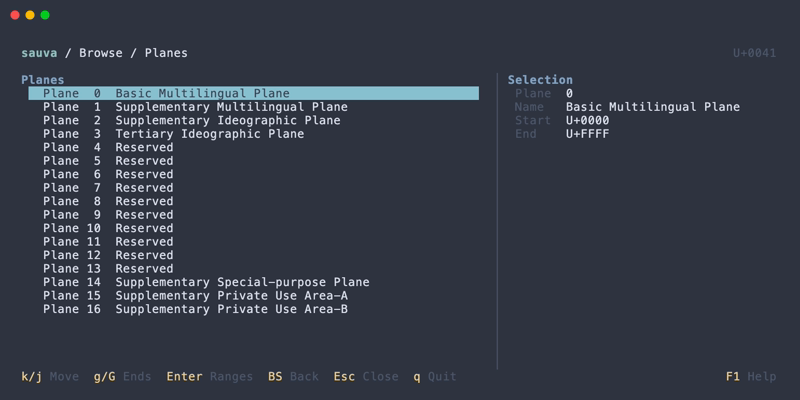
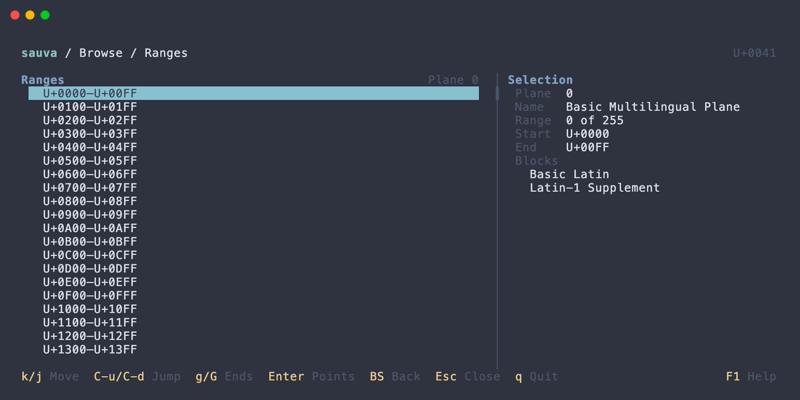
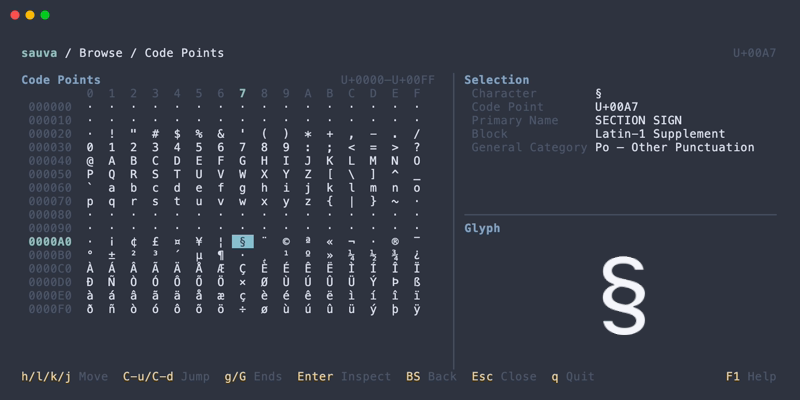
This path explores Unicode by code point value:
Plane → Range → Code Point → Inspector
A plane contains 65,536 code points. Sauva divides each plane into ranges of 256 code points for browsing. These ranges are numeric subdivisions, independent of named Unicode blocks.
Blocks
This path explores named blocks from the Unicode Character Database:
Block → Code Point → Inspector
Blocks have different sizes and may leave gaps between them.
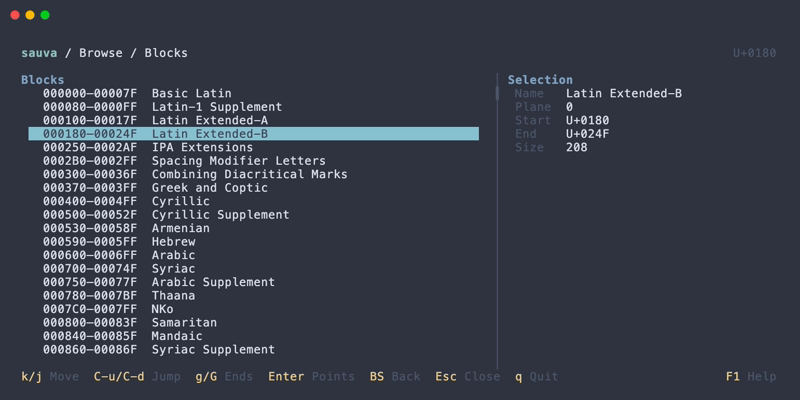
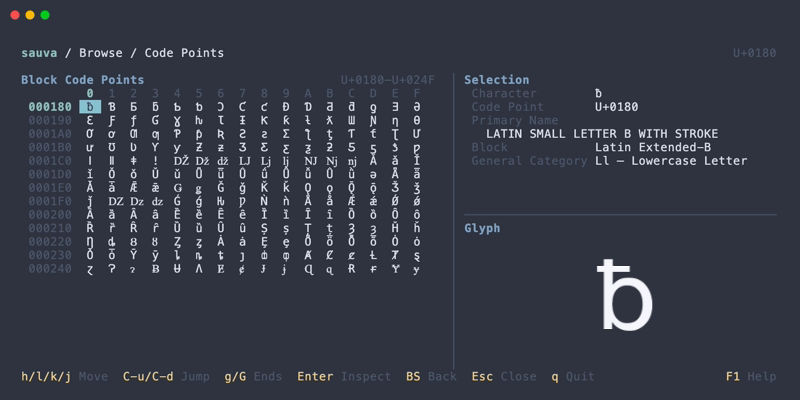
Code point grids include unassigned and special code points, so an entry may have no visible glyph. The Inspector provides the available property details for each entry.
Operations
| Keys | Action |
|---|---|
| Arrow keys | Select an item or code point |
| Enter | Open the next level or inspect the selected code point |
| Backspace | Return to the previous browse level, or to the Inspector at the starting level |
| Esc | Close Browse and return to the Inspector |
See Keybindings for all Browse controls.
Bookmarks
Save code points to revisit them across sessions. In the Inspector, press m to add the current code point.
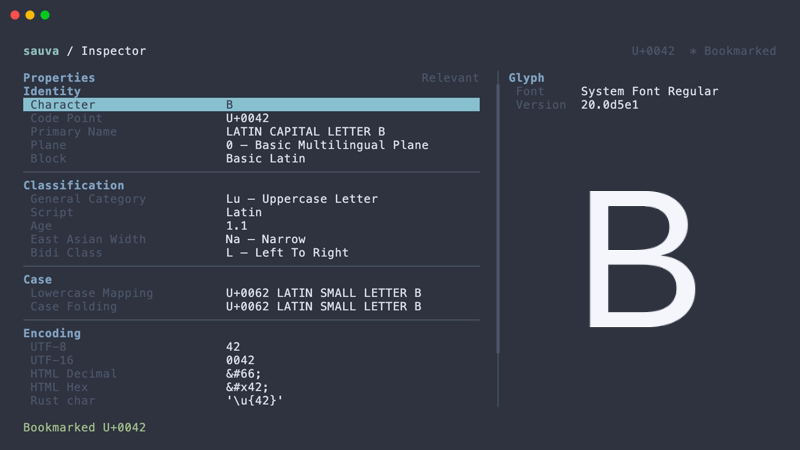
Bookmark List
Press M in the Inspector to open Bookmarks.
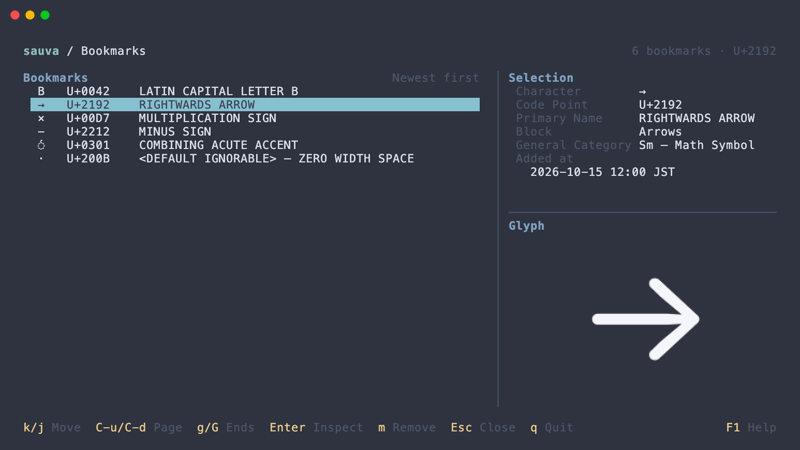
Bookmarks can be sorted by registration time or code point, in ascending or descending order.
Registration Time
Customize the display of registration times with ui.bookmark_date_format.
Storage
Bookmarks are saved in $XDG_DATA_HOME/sauva/bookmarks.toml, or ~/.local/share/sauva/bookmarks.toml when XDG_DATA_HOME is unset or empty.
Any code point that Sauva can inspect can be bookmarked, including unassigned code points and surrogates.
Operations
| Keys | Action |
|---|---|
| Up / Down | Select a bookmark |
| Enter | Open the selected code point in the Inspector |
| m | Remove the selected bookmark |
| s | Switch sort order |
| Esc | Close Bookmarks and return to the Inspector |
Backspace in the Inspector returns to the bookmark list.
See Keybindings for all Bookmarks controls.
Sequence
Sequence mode analyzes a string as an ordered list of code points, grouped into grapheme clusters. It is useful for examining combining marks, emoji sequences, and invisible characters.
Start in Sequence Mode
Pass a string to analyze its code points and grapheme clusters:
sauva 'Á👩💻'
See Basic Usage for literal text and piped input examples, and Command Line Options for input interpretation rules.
Code Points and Grapheme Clusters
A code point is one Unicode value, such as U+0041. A grapheme cluster groups code points into a unit that often corresponds to a user-perceived character. Sauva uses extended grapheme cluster boundaries as described in Unicode Text Segmentation.
For example, the string Á👩💻 contains five code points and two grapheme clusters:
| Cluster | Code points |
|---|---|
Á | U+0041 LATIN CAPITAL LETTER A + U+0301 COMBINING ACUTE ACCENT |
👩💻 | U+1F469 WOMAN + U+200D ZERO WIDTH JOINER + U+1F4BB PERSONAL COMPUTER |
The accented A in the command above is U+0041 followed by U+0301.
Reading the Screen
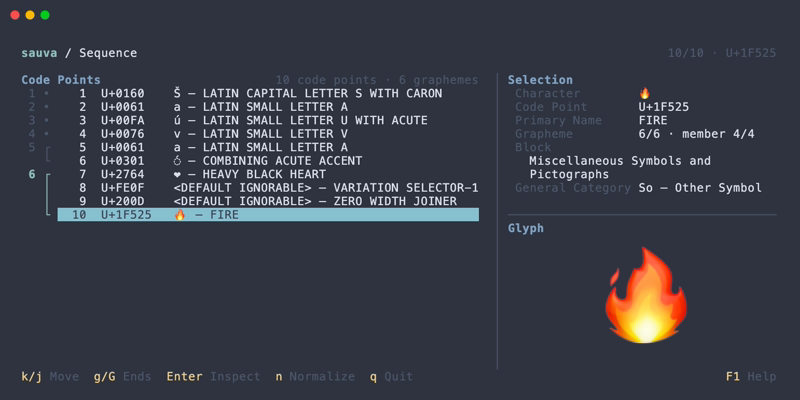
- Each row shows the input position, code point, display representation, and Unicode name.
- The left gutter numbers grapheme clusters and connects their member code points. A dot marks a cluster containing one code point.
- When space is available, the selection panel shows the selected code point's properties and position within its cluster. The glyph image renders that individual code point.
Input order, repeated characters, spaces, and newlines are preserved. Labels and dotted circles make otherwise hard-to-see characters visible in the list.
Inspect a Code Point
Open a code point in the Inspector to read its properties.
Copying
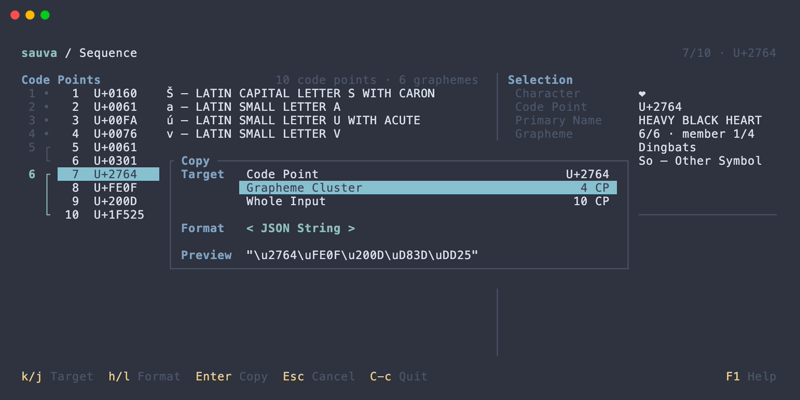
The copy dialog copies the selected code point, its whole grapheme cluster, or the original input in a chosen format.
Operations
| Keys | Action |
|---|---|
| Up / Down | Select a code point |
| Enter | Open the selected code point in the Inspector |
| n | Compare normalization forms |
| Y | Open the copy dialog |
Backspace in the Inspector returns to Sequence.
See Keybindings for all Sequence and copy dialog controls.
Normalization
From Sequence, press n to compare the input with its NFC, NFD, NFKC, and NFKD normalized forms.
sauva 'Á①ffi'
Forms
| Form | Transformation |
|---|---|
| NFC | Canonical decomposition followed by canonical composition |
| NFD | Canonical decomposition |
| NFKC | Compatibility decomposition followed by canonical composition |
| NFKD | Compatibility decomposition |
Canonical normalization handles equivalent representations, such as a precomposed accented letter and a letter followed by a combining mark. Compatibility normalization also converts characters such as circled digits and ligatures, and can remove distinctions in their original presentation. See Unicode Normalization Forms for the specification.
Examples of individual transformations:
| Input | Form | Result |
|---|---|---|
A + U+0301 | NFC | Á (U+00C1) |
Á (U+00C1) | NFD | A + U+0301 |
① (U+2460) | NFKC | 1 (U+0031) |
ffi (U+FB03) | NFKD | ffi |
Comparison
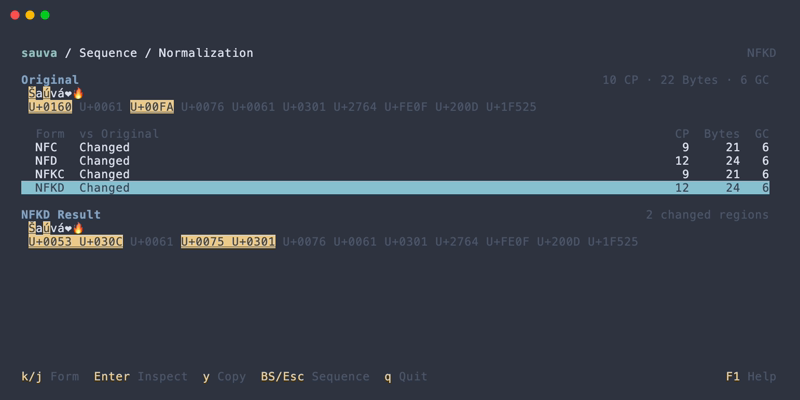
The comparison screen shows:
- The original text and its code point sequence.
- Whether each form changes the input.
- Code point (
CP), UTF-8 byte (Bytes), and grapheme cluster (GC) counts for each form. - The selected form's result, code point sequence, and number of changed regions.
Changed regions use the configured difference colors and underlining. Spaces and invisible characters are represented with display aids; the copied result contains the actual normalized text.
Inspect a Result
Each normalized result can be opened as a code point list.
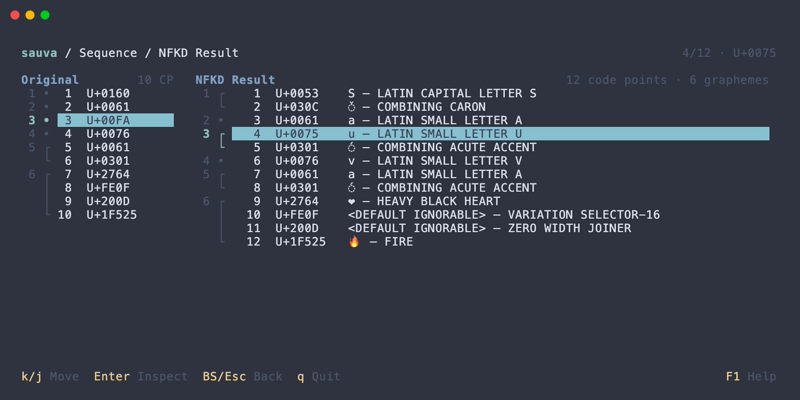
The result is shown alongside the original code point list. As you select a result code point, the corresponding region in the original is highlighted and brought into view. This makes compositions and expansions easier to follow.
Result code points can be opened in the Inspector to read their properties.
Copying
Quick copying from form comparison takes the whole normalized result as text. The copy dialog offers other formats and, from the result list, code point and grapheme cluster targets.
Operations
| Keys | In form comparison | In a result list |
|---|---|---|
| Up / Down | Select a form | Select a code point |
| Enter | Open the selected result | Open the selected code point in the Inspector |
| y | Copy the whole normalized result | — |
| Y | Open the copy dialog for the whole result | Open the copy dialog |
| Esc | Return to the original sequence | Return to form comparison |
Backspace in the Inspector returns to the result list.
See Keybindings for all comparison, result list, and copy dialog controls.
Copying
The copy dialog copies a character or string as text, a quoted string literal, or a numeric sequence.
Targets
| Screen | Available targets |
|---|---|
| Inspector | The current Code Point, regardless of the selected property |
| Sequence | The selected Code Point, its Grapheme Cluster, or the Whole Input |
| Normalization comparison | The selected form's Whole Result |
| Normalization Result | The selected Code Point, its Grapheme Cluster, or the Whole Result |
A grapheme cluster includes members outside the visible list. Normalization copies use the selected result.
Formats
The following examples use A + U+0301 + 😀:
| Format | Clipboard content |
|---|---|
| Text | The actual text Á😀 |
| JSON String | "A\u0301\uD83D\uDE00" |
| Rust String | "A\u{301}\u{1F600}" |
| Code Point List | U+0041 U+0301 U+1F600 |
| UTF-8 Hex | 41 CC 81 F0 9F 98 80 |
| UTF-16 Units | 0041 0301 D83D DE00 |
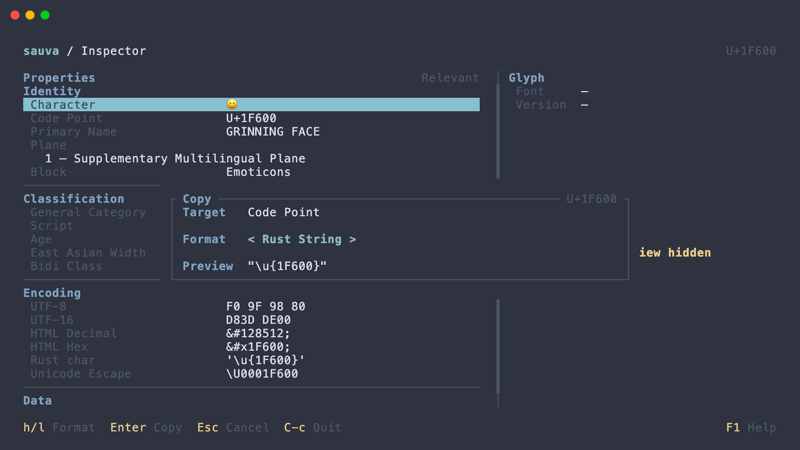
JSON String and Rust String include quotes and use ASCII escapes for non-ASCII characters and controls. Even one character is copied as a string literal.
Numeric sequences use uppercase hexadecimal values separated by spaces. UTF-8 Hex is text representing bytes; UTF-16 Units represents 16-bit code units without selecting a byte order.
Copies preserve whitespace, line endings, and invisible characters. Display aids and preview ellipses are not copied.
Surrogates support Code Point List only, such as U+D800.
Operations
| Keys | Action |
|---|---|
| Y | Inspector, Sequence, or Normalization: open the copy dialog |
| Up / Down | Copy dialog: select a target when multiple targets are available |
| Left / Right | Copy dialog: cycle through the available formats |
| Enter | Copy dialog: copy the selected target and format |
See Keybindings for all copy dialog controls and Custom Keybindings to change them.
FAQ
Why is the glyph preview missing?
Check Compatibility and make sure images were not disabled with --graphics off. If a compatible terminal is not detected, try sauva --graphics force. For the iTerm2 inline image protocol, use sauva --graphics iterm2.
For Glyph unavailable, install a font with a usable glyph or adjust the preferred fonts. See Special Characters for other preview messages.
If the panel is hidden or reports Preview area unavailable, enlarge the terminal.
Why does the glyph use a different font from my terminal?
Glyph images use their own font settings. Set glyph_preview.font_families and glyph_preview.emoji_font_families to installed family names. See Glyph Preview for the selection order and examples.
Why does sauva 41 open the letter A?
41 is interpreted as hexadecimal code point notation for U+0041, the letter A.
Use sauva --text 41 to analyze the literal text 41 in Sequence mode. See Command Line Options for notation rules.
Why does echo U+2192 | sauva - fail?
echo adds a newline, and Sauva preserves that newline as part of stdin. It therefore cannot parse the input as code point notation.
Use printf to omit the newline:
printf 'U+2192' | sauva -
To examine the literal text and its newline, use:
echo U+2192 | sauva --text -
See Command Line Options for stdin rules.
Why does an emoji appear as several rows?
Sequence has one row per code point. An emoji such as 👩💻 contains multiple code points grouped into one grapheme cluster. See Sequence for an example.
Why does copying fail?
Copying requires a system clipboard. Check that one is available in the current desktop session; an SSH or headless session may not provide one.
Unavailable property values cannot be copied. See Copying Values for details.
Why does my configuration prevent startup?
The startup error identifies the configuration file and the problem. Check the path in Configurations and the reported setting in Config File Format. For binding errors, see Custom Keybindings.
Use sauva --print-default-config for a valid configuration reference.
Can I use Sauva without glyph images?
Yes. Run sauva --graphics off. All text features remain available.
Which Unicode version does Sauva use?
The bundled data is based on Unicode 17.0.0. See Unicode Data for details.